

Yes, Instagram supports basic auto replies natively. For anything beyond a single canned message, you need something smarter.
The built-in path is Instant Reply and Away messages, both switched on through Meta Business Suite, plus manually triggered Quick Replies for repetitive questions. That covers you for after-hours coverage and simple FAQs. The moment you need lead qualification, keyword-triggered flows, or replies that actually understand context, native tools stop being enough, and an API-connected AI platform like Sopai becomes worth evaluating.
Here's the quick breakdown:
- Simple coverage (hours, location, "we got your message"): use Instagram's native Instant Reply
- Repeated manual answers you send yourself: use saved Quick Replies
- Booking, qualification, keyword triggers, contextual conversation: use an AI-connected tool such as Sopai
Key Takeaways
The fastest path to reliable Instagram engagement is layering native Instant Reply for baseline coverage with an AI-connected tool like Sopai once volume or lead qualification demands more than a static message.
| Point | Details |
|---|---|
| Start native | Enable Instant Reply and Away messages in Meta Business Suite for free, immediate coverage. |
| Know the ceiling | Native tools send one static message with no branching logic or keyword detection. |
| Use Quick Replies for manual work | Save templated text for questions you still want to answer personally, not automatically. |
| Prioritize API safety | Choose automation tools that connect via OAuth and the Meta Messaging API, never password-based bots. |
| Upgrade when qualification matters | Sopai adds brand-voice AI replies, buyer scoring, and cross-network automation once native tools can't keep pace. |
Table of Contents
- How to Set Up Instagram Auto Replies With Meta Business Suite
- Quick Replies or Auto Replies: Which One Do You Actually Need?
- Step-by-Step: Connecting Your Account and Turning On Automations
- Ready-to-Use Auto Reply Templates for Common Scenarios
- Best Practices That Keep Automation From Feeling Robotic
- When Native Tools Stop Being Enough
- Where Most Advice on Auto Replies Gets It Wrong
- Why Sopai Is the Upgrade Path Once You Outgrow Native Tools
- Sources
How to Set Up Instagram Auto Replies With Meta Business Suite
Instant Reply and Away messages are Instagram's two native automation options, and they both live in the same place: Meta Business Suite's Inbox. Instant Reply fires the moment someone messages you, any time of day. Away messages fire only outside hours you define. Either way, you're limited to one generic message per trigger. There's no branching logic, no keyword detection, and no way to ask a follow-up question.
Here's the sequence:
- Switch your Instagram account to a professional (Business or Creator) account, since automations don't exist on personal accounts.
- Connect that account to Meta Business Suite, linking it to a Facebook Page during setup.
- Open Inbox → Automations inside Business Suite.
- Select Instant Reply or Away Message, write your text, and toggle it on.
- Send yourself a test DM from a separate account to confirm delivery and timing.
Instagram's own Help Center also documents AI auto replies inside the app itself, under chat settings, which label automated responses so people know they're talking to an assistant rather than a human, and let them jump into a live conversation whenever they want.
Pro Tip: Keep your Instant Reply under two sentences. Something like "Thanks for reaching out! We reply to all messages within 24 hours. For urgent orders, call us at [number]" does more work than a paragraph nobody reads.
The main gap: one message, no branching, no way to route different questions differently. That's fine for a boutique with steady hours. It's a bottleneck for anyone fielding pricing questions, booking requests, and support tickets in the same inbox.
Quick Replies or Auto Replies: Which One Do You Actually Need?
These get confused constantly, and the confusion costs people setup time. Quick Replies are saved text snippets you trigger manually, typing a shortcut like "/pricing" to insert a full paragraph instead of retyping it. Auto replies (Instant Reply, Away messages) fire automatically without you touching anything. They solve different problems.
Instagram's own FAQ feature in chats sits somewhere in between: you can preload up to four questions with automated answers that show up as tappable options in a conversation. Useful, but capped at four, and still not conversational.
| Approach | Best for | Limitation |
|---|---|---|
| Quick Replies | High-touch, nuanced conversations where you're still typing | Manual, doesn't scale past a few conversations at once |
| Instant Reply / Away | Blanket coverage, after-hours acknowledgment | One static message, no logic |
| FAQ automation | Common repeated questions | Capped at four questions, no follow-up handling |
| AI-connected automation | Lead qualification, booking, keyword triggers | Requires a third-party platform |
The decision rule is straightforward: if a conversation needs a human's judgment, use Quick Replies to speed yourself up. If the volume is high and the questions are predictable, automate it.
Step-by-Step: Connecting Your Account and Turning On Automations
Getting this right the first time saves you from the most common failure mode: automations that silently stop working because a permission lapsed.
- Switch to a professional account. Go to Settings → Account type and tools, choose Business or Creator. Instagram requires this because personal accounts can't access the Graph API that automations run on.
- Connect to Meta Business Suite. Log in at business.facebook.com, link your Instagram account through OAuth, and grant messaging permissions when prompted. This is the same authorization flow legitimate third-party tools use, rather than asking for your password directly.
- Create saved replies. Inside the Instagram app, go to Settings → Business tools → Saved Replies, and build a short library: pricing, hours, shipping, returns.
- Enable Instant Reply and Away messages. Back in Business Suite, go to Inbox → Automations, and turn on both with distinct copy for each.
- Test everything from a second account. Confirm the message fires, check the timing, and screenshot it for reference.
Pro Tip: If automations stop firing, the fix is almost always relinking your Page in Business Suite settings rather than rebuilding the automation from scratch. Permission errors show up as "action needed" banners in the Inbox, not as an obvious error message, so check there first before assuming something's broken.
Common troubleshooting issues: messages not sending usually trace back to an expired Page connection or a revoked permission after an app update. Delays of a few minutes are normal during high traffic; delays longer than that usually mean the automation toggle silently reverted, which happens after Instagram pushes account-type changes. Re-authenticating through Business Suite resolves most of these without touching your actual automation content.
Ready-to-Use Auto Reply Templates for Common Scenarios
Steal these and adjust the tone to match your brand:
- Pricing inquiry: "Hey {username}, thanks for asking! Our packages start at [price]. Want me to send the full breakdown or connect you with our team?"
- Booking/appointment: "Thanks for reaching out! You can grab a spot directly here: [link]. If you'd rather chat first, let us know a good time and we'll follow up."
- Story reply trigger: "Love that you're loving this! Here's the direct link to grab one: [link]"
- Comment-to-DM: "Just sent you a DM with the details, check your inbox!"
- Off-hours away message: "We're offline right now but read every message. Expect a reply within [timeframe]. For urgent issues, try [alternate contact]."
Add personalization tokens like {username} wherever your tool supports them. A message with a name attached reads as a reply, not a broadcast.
Pro Tip: B2B audiences tolerate longer, more formal templates. DTC audiences respond better to shorter, casual copy with an emoji or two. Test both and watch which one actually gets replies instead of silence.
Best Practices That Keep Automation From Feeling Robotic
Automation earns trust when it feels considerate, not when it feels clever. A few rules separate the two.
- Set expectations explicitly. Tell people how fast you'll respond, and mean it.
- Always leave a human door open. Every automated flow should include a clear way to reach a person for anything complex, whether that's a phrase like "talk to a human" or a direct escalation trigger.
- Follow up, don't spam. A gentle nudge at 4 hours and another at 24 hours outperforms five messages in one afternoon.
- Push toward DMs, not away from them. Automation that funnels people into private conversation tends to surface higher-intent leads than automation that just answers and closes the loop.
Track three numbers to know if any of this is working: response time, DM-to-booking (or DM-to-sale) conversion rate, and message volume handled without human intervention. If your automated replies aren't visibly shortening response time or lifting conversion within a few weeks, the copy or the trigger logic needs revisiting, not more volume.
When Native Tools Stop Being Enough
Instagram's built-in automations are static. Third-party AI tools are conversational, and that difference shows up the moment a customer asks a follow-up question a static message can't answer. AI-connected platforms add keyword triggers, contextual replies that reference what someone actually asked, in-DM booking, and automation that runs across more than one channel at once.
The safety line matters here more than most people realize:
Automations built on the official Meta Messaging API, authorized through OAuth, are sanctioned and safe. Tools that ask for your Instagram password directly, or that automate a browser session instead of connecting through the API, put your account at risk of suspension.
Before picking a vendor, confirm:
- It connects via official API access, never password login
- It explains how it stores and purges message data
- It lets you customize tone and escalate to a human without friction
- It supports the specific triggers you need (keywords, comment-to-DM, booking)
Where Most Advice on Auto Replies Gets It Wrong
Most guides treat Instagram automation as a binary choice: set up Instant Reply and call it done, or ignore it entirely because "DMs need a human touch." Both takes miss the actual decision point, which is volume, not philosophy.
A static Instant Reply is genuinely the right call for a solo shop fielding a dozen messages a day. It's the wrong call the moment you're losing leads to slow response times, because a generic acknowledgment doesn't qualify anyone or move a conversation forward. That's where a lot of businesses get stuck: they either over-automate with a stiff canned message that annoys people, or they under-automate and burn hours answering the same five questions by hand.
The overlooked nuance is that automation and personalization aren't opposites. A well-built AI reply that references what someone actually asked feels more human than a manual Quick Reply pasted in without reading the message closely. What matters isn't whether a reply is automated. It's whether it's specific to the person receiving it.
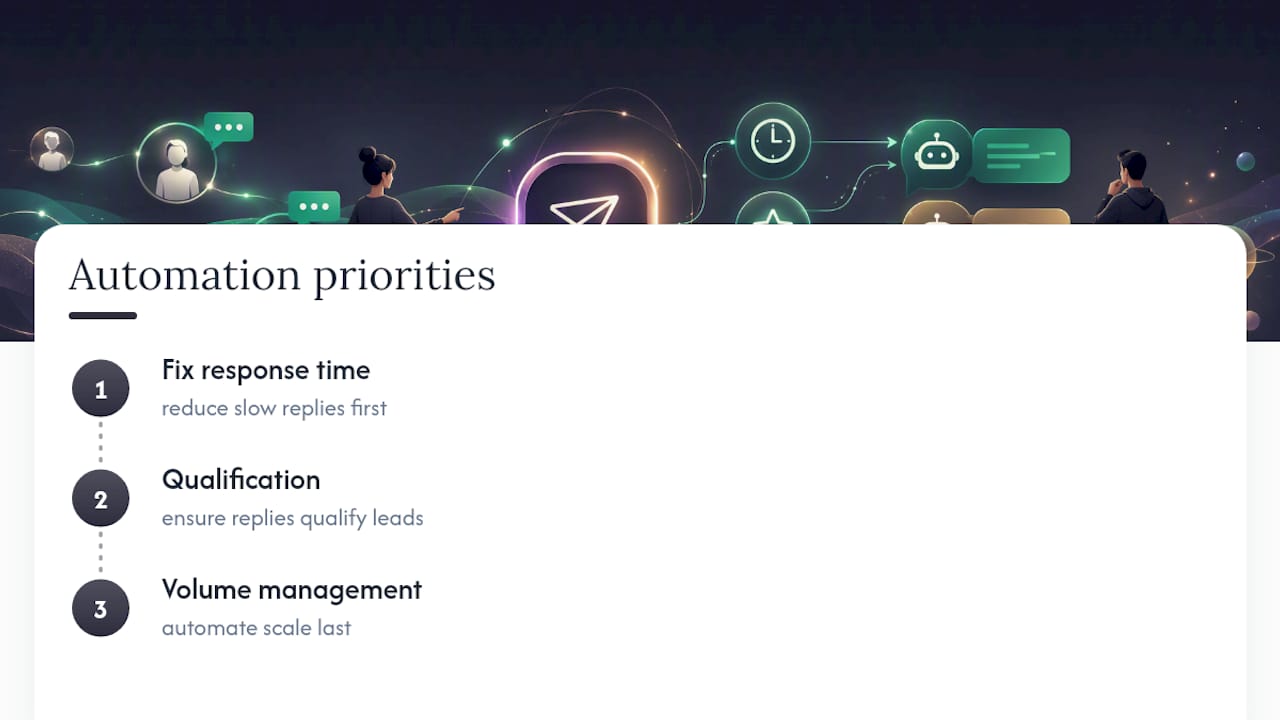
Prioritize this: fix response time first, qualification second, and volume last. Speed without relevance just annoys people faster.
— Stoyan
Why Sopai Is the Upgrade Path Once You Outgrow Native Tools
Once Instant Reply and Quick Replies stop keeping up, Sopai picks up where Instagram's native tools max out. It replies in your actual brand voice instead of a generic template, scores incoming leads so you know which DMs need a human right now, and runs the same logic across eight networks instead of just one inbox.
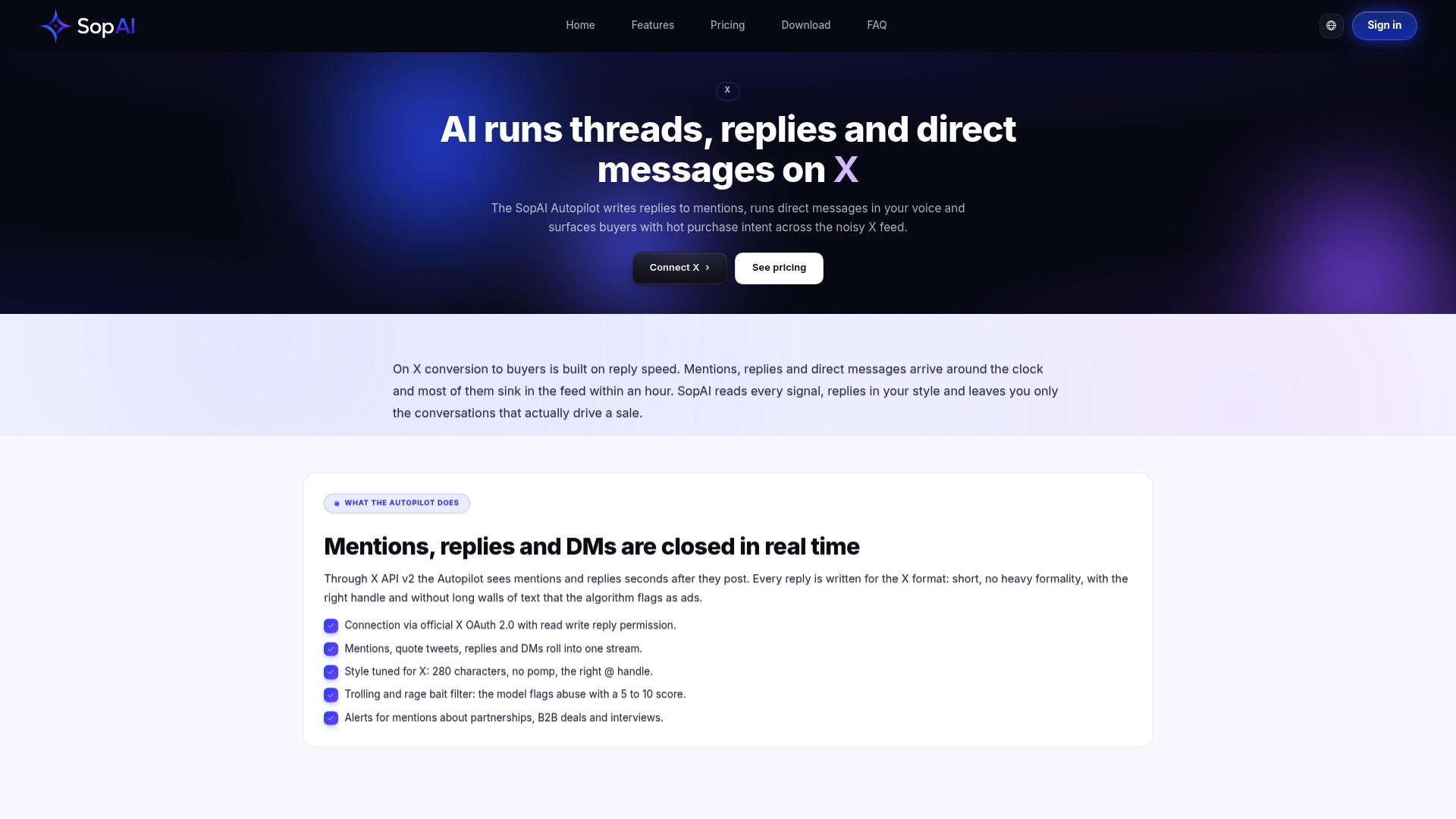
That matters because the conversation rarely stays inside Instagram. A customer who DMs you today might message on WhatsApp tomorrow, and Sopai's autopilot keeps context consistent everywhere instead of resetting at each platform's front door. Businesses using Sopai's automation reported a 24% increase in new customers within a week of switching on, which tracks with what happens when qualification and response speed stop depending on someone being at their desk.
Check the features page to see the reply templates, buyer scoring, and multi-network setup in detail, or start on the free tier to see how it handles your actual DM volume before committing to anything larger.
Sources
- Turn on AI auto replies for Instagram
- How to Set Up Auto-Reply on Instagram to Boost Engagement
- Instagram Auto Reply: Setup Guide & Templates (2026) - SetSmart